Dotčené modely
Tato informace platí pro následující modely:
- ILME-FX30
- ILME-FX30B
O souboru ke stažení
Na co je třeba pamatovat před provedením aktualizace
- Pokud máte ve fotoaparátu nainstalovanou verzi 1.02 nebo starší, musíte nejprve provést aktualizaci na verzi 1.05, než nainstalujete verzi 6.01.
- Instalace verze 6.01 přímo bez aktualizování na verzi 1.05 skončí chybou a aktualizace se nezdaří.
- Cesta aktualizace: Verze 1.02 nebo starší → Verze 1.05 → Verze 6.01
- Aktualizaci softwaru můžete stáhnout pomocí aplikace Creators' App dostupné v obchodě App Store nebo Google Play.
Výhody a vylepšení
- Optimalizuje zpracování uživatelské tabulky LUT
- Zlepšuje celkový výkon a stabilitu fotoaparátu
Předchozí výhody a vylepšení
Podívejte se na předchozí výhody a vylepšeníInformace o souboru
- Název: BODYDATA.DAT
- Verze: 6.01
- Velikost: 906 619 304 bajtů
- Datum vydání: 17-03-2026
Příprava
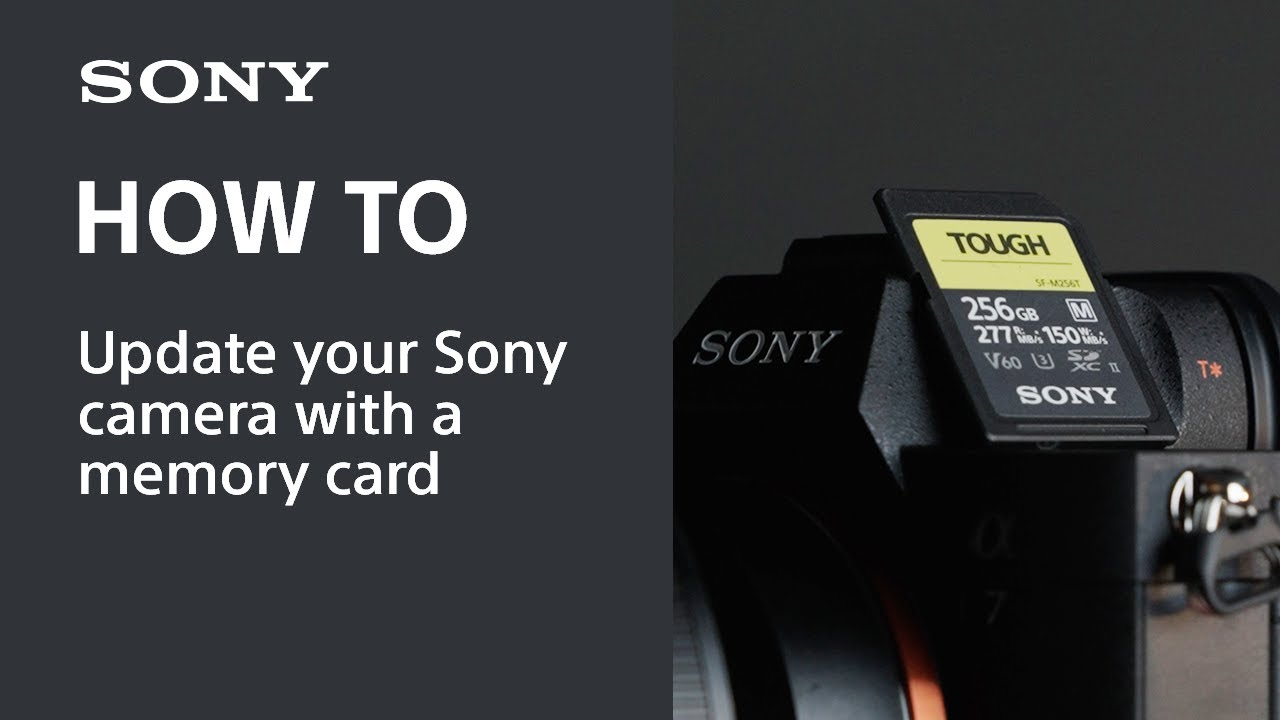
Jak aktualizovat fotoaparát Sony pomocí paměťové karty (SD nebo CFexpress)
Zkontrolujte verzi systémového softwaru
Podle pokynů níže zkontrolujte verzi systémového softwaru:
- Vyberte možnost Menu (Nabídka) → Setup (Nastavení) → Setup Option (Možnosti nastavení) → Version (Verze)→ Body (Tělo).
- Zobrazí se verze systémového softwaru.
Sekvence aktualizace
- Pokud je nainstalován systémový software verze 6.01, aktualizace není vyžadována.
- Pokud máte ve fotoaparátu nainstalovanou verzi 1.02 nebo starší, musíte nejprve provést aktualizaci na verzi 1.05, než nainstalujete verzi 6.01.
- Instalace verzi 6.01 přímo bez aktualizování na verzi 1.05 skončí chybou a aktualizace se nezdaří.
- Vyžadovaná cesta aktualizace: Verze 1.02 nebo starší → Verze 1.05 → Verze 6.01.
Pokud se po zapnutí fotoaparátu zobrazí obrazovka nastavení Date/Time (Datum a čas), nastavte správně datum a čas.
Ukládání dat systémového softwaru na paměťovou kartu
DŮLEŽITÉ: Ujistěte se, že na paměťové kartě je pouze jeden soubor BODYDATA.DAT.- Klikněte na možnost Download (Stáhnout).
- Po přečtení odmítnutí odpovědnosti klikněte na možnost Download (Stáhnout).
- Uložte soubor do počítače.
- Vložte naformátovanou paměťovou kartu do počítače.
- Uložte soubor BODYDATA.DAT do kořenové složky paměťové karty. Neměňte název souboru.
Poznámky:
- Pomocí fotoaparátu si paměťovou kartu předem naformátujte.
- Před formátováním zkopírujte data do počítače nebo jiného zařízení.
- Formátováním z paměťové karty trvale odstraníte všechna data. Odstraněná data nelze obnovit.
- Jaké paměťové karty jsou s fotoaparátem kompatibilní zjistíte v návodu k obsluze.
Požadavky na napájení
- Napájení: Použijte plně nabitou dobíjecí baterii (NP-FZ100).
- Aktualizaci je možné provést pouze v případě, že je baterie nabitá alespoň na
tři dílky či 51 % nebo více. Doporučujeme používat plně nabitou baterii.
Aktualizace verze systémového softwaru
Důležité upozornění
- Použijte plně nabitou dobíjecí baterii (NP-FZ100).
- Během aktualizace baterii nevyjímejte. Mohlo by to způsobit, že fotoaparát přestane fungovat. Aktualizaci nemusí být možné provést, pokud je teplota fotoaparátu příliš vysoká. Před provedením aktualizace vyčkejte, dokud teplota neklesne.
Krok 1: Aktualizace systémového softwaru
- Vložte paměťovou kartu, která obsahuje uložená data systémového softwaru, do slotu 1 fotoaparátu. Data systémového softwaru rozpozná jedině slot 1.
- Vyberte možnost Menu (Nabídka) → Setup (Nastavení) → Setup Option (Možnosti nastavení) → Version (Verze)→ Body (Tělo).
- Vyberte možnost Software Update (Aktualizace softwaru).
- Na potvrzovací obrazovce aktualizace systémového softwaru vyberte možnost Execute (Spustit). Spustí se aktualizace verse softwaru.
Zpráva na obrazovce:- Update? (Aktualizovat?) X.XX → Y.YY
- X.XX: Číslo stávající verze
- Y.YY: Číslo nejnovější verze
- Během aktualizace nevyjímejte baterii ani paměťovou kartu.
- Po potvrzení podrobností můžete kliknout na tlačítko Execute (Spustit).
- Přejeďte dolů podle potřeby a zobrazte si celý text.
- Update? (Aktualizovat?) X.XX → Y.YY
- Jakmile začne aktualizace systémového softwaru, zobrazí se černá obrazovka. Kontrolka přístupu zabliká jednou → třikrát → pětkrát v závislosti na průběhu aktualizace. Dokončení aktualizace bude trvat přibližně 6 minut.
- Po dokončení aktualizace se fotoaparát automaticky restartuje. Po restartu stiskněte OK na obrazovce Body update complete(Aktualizace těla dokončena).
Krok 2: Kontrola verze systémového softwaru vašeho fotoaparátu
- Vyberte možnost Menu (Nabídka) → Setup (Nastavení) → Setup Option (Možnosti nastavení) → Version (Verze)→ Body (Tělo).
- Zobrazí se verze systémového softwaru.
Aktualizace proběhla úspěšně, pokud se na obrazovce zobrazí Verze 6.01.
Pokud aktualizace selže
Pokud nebyl systémový software správně nakopírován na paměťovou kartu, na fotoaparátu
se může zobrazit chybové hlášení nebo může ohlásit chybu pomocí kontrolky přístupu.
Co možná uvidíte:
- Na monitoru fotoaparátu se zobrazí hlášení „The target model for the update file is incorrect“ (Cílový model aktualizovaného souboru je nesprávný).
- Kontrolka přístupu blikne jedním z následujících vzorců:
- 5 dlouhých bliknutí (interval 0,5 sekundy) následovaných 6 krátkými bliknutími (interval 0,25 sekundy)
- 7 dlouhých bliknutí (interval 0,5 sekundy) následovaných 7 krátkými bliknutími (interval 0,25 sekundy)
Co to znamená:
- Fotoaparát možná nebyl aktualizován na verzi 1.05 nebo novější před provedením této aktualizace.
- Systémový software byl na paměťovou kartu zkopírován nesprávně.
Co dělat:
- Vyjměte z fotoaparátu baterii a paměťovou kartu.
- Připravte si jinou paměťovou kartu.
- Začněte znovu od sekce Ukládání dat systémového softwaru na paměťovou kartu tohoto článku.
Aktualizace systémového softwaru (firmwaru) pro model ILME-FX30, verze 6.01
Zaregistrujte svůj produkt
Získejte přístup ke všem informacím, svůj produkt mějte vždy aktualizovaný a užijte si skvělé nabídky
Komunita společnosti Sony
Navštivte naši komunitu a podělte se o své znalosti a rady s dalšími zákazníky společnosti Sony
Kontaktujte podporu
Kontaktujte tým technické podpory Sony
Servis, záruka a náhradní díly
Rezervujte si opravu, sledujte ji, nebo se jí vyhněte úplně
Support by Sony (Mobilní aplikace)
Už nikdy nepropásnete aktualizaci! V aplikaci najdete všechny informace o svém produktu a budou vám chodit nejnovější notifikace

